The short answer: if your AI-generated character is a humanoid, upload it to Mixamo (free, in the browser) or rig it right where you made it with Meshy's or Tripo's built-in auto-rigging. If it is not humanoid, Mixamo won't help. Use Meshy (four-legged animals), Tripo's API (quadrupeds, insects, birds, snakes, fish), or Blender with Rigify (free) or Auto-Rig Pro ($50). Then export one GLB with all your animations and play them in three.js with AnimationMixer.
AI generators like Meshy, Tripo and Hunyuan 3D give you a static mesh. To make it walk you need a skeleton (the rig), skin weights that tie the mesh to the bones, and animation clips. This guide compares the tools that do this automatically, then walks through a pipeline for a three.js game, with notes for Unity and Godot. We checked every price, format and licence on the official pages on 26 November 2026. We did not run these tools ourselves, so the workflows below are the documented ones.
Quick comparison
| Tool | Price (26 Nov 2026) | What it rigs | Needs Blender? | Output | Animations included | Commercial games |
|---|---|---|---|---|---|---|
| Mixamo (Adobe) | Free with an Adobe ID | Bipedal humanoids only | No, browser | FBX, DAE | Large library, free | Yes, royalty free; don't redistribute the raw files |
| Meshy auto-rig | Rigging costs 0 credits in the web app; Free plan has 100 credits/month | Humanoids, four-legged animals; Smart Rig (beta) for anything else | No | FBX, GLB, USDZ | Walk/run on rigging; 600+ humanoid presets, most on paid plans | Paid plans: yes. Free plan: CC BY 4.0, credit required |
| Tripo auto-rig | Free plan 200 credits/month; Pro from $20/month | Biped; via API also quadruped, hexapod, octopod, avian, serpentine, aquatic | No | GLB, FBX | 90+ biped presets (older rig), 11 on the new biped rig | Paid plans: yes. Free plan: public, non-commercial |
| AccuRIG (Reallusion) | Free | Humanoids | No (Windows app) | FBX presets for major engines and DCC tools | ActorCore library: some free motions, most paid | Yes, AccuRIG is free for commercial use |
| Rigify | Free, bundled with Blender | Human, quadruped, cat, wolf, horse, shark metarigs, or build your own | Yes | Anything Blender exports (GLB, FBX) | None | Yes |
| Auto-Rig Pro | $50 full, $25 Lite | Humanoids with automatic bone placement; quadrupeds and others by hand | Yes | FBX, glTF via its game-engine export | None, but retargets FBX/BVH clips | Yes |
| UniRig | Free, MIT | Humans, animals, objects (research model) | Uses Blender's Python module; needs an NVIDIA GPU | FBX, GLB | None | Yes, MIT code and weights |
The rest of this guide explains each one and how to get the result into a game.
Clean up the AI model before you rig it
Every auto-rigger guesses where the joints are from the shape of the mesh. AI-generated characters often confuse that guess. These are the fixes the tools' own docs ask for:
- Pose: T-pose or A-pose, limbs apart. Meshy's rigging guide asks for "a T-pose or A-pose, with a clear gap between the limbs and the body", and lists "the model isn't close to a T-pose or A-pose" as the cause of bones in the wrong place. AccuRIG's FAQ says auto-detection works best in A-pose or T-pose. Mixamo's help asks for a neutral pose and warns that strongly asymmetric or already-posed characters may fail. The easiest fix is at generation time: Meshy's Image to 3D has a Pose setting for A-Pose or T-Pose.
- Symmetry. Rigging tools mirror one side to the other (Meshy's markers do, and so do Rigify's metarigs). A character with one arm raised or a big prop in one hand rigs worse. Remove or separate held weapons and add them back later as a child of the hand bone.
- One clean body, nothing else in the file. Per Adobe's help pages, Mixamo needs a head, body, arms and legs that are connected (no floating head), the character at the origin, and no cameras, lights or helper objects in the file.
- Facing and scale. Meshy's API wants the face pointing along +Z, the glTF forward direction. Rigify assumes 1 unit = 1 metre, so a human is about 2 units tall, and the Rigify manual suggests applying the scale (Object ‣ Apply ‣ Scale) before placing bones.
- Triangle count. AI models are often far denser than a browser game needs. Meshy won't rig a generated model over 300,000 faces until you run Remesh, and its API caps rigging input at 380,000 triangles. Dense or uneven topology also makes the mesh clip through itself when it moves, per Meshy's troubleshooting table. Remesh or decimate first. For a browser game, aim for the lowest count that still looks right at your camera distance.
Mixamo: free humanoid auto-rigging and animation library
Mixamo is Adobe's free web tool. You upload a character, place markers on the chin, wrists, elbows, knees and groin, and it builds a skeleton and skin weights. Then you pick animations from its library, preview them on your character, and download.
- Cost and account. Free with an Adobe ID. Adobe's Mixamo FAQ says it doesn't require a Creative Cloud subscription.
- Upload formats. FBX, OBJ or a ZIP (put an OBJ with its .mtl and textures in a ZIP so textures come through; for FBX, turn on "embed media"). GLB is not accepted, so convert AI-generated GLBs to FBX in Blender first (File ‣ Import ‣ glTF, then File ‣ Export ‣ FBX).
- Humanoids only. The auto-rigger and the animation library are for bipedal humanoids. A dog, a spider or a robot on wheels won't rig.
- Download formats. FBX or Collada (DAE). There is no GLB download, so for three.js you convert in Blender (see the pipeline below).
- Licence for games. Adobe's FAQ says you can use the characters and animations royalty free in personal, commercial and non-profit projects, including video games. A licensing post by an Adobe community expert (2022) adds the main limit: you can't distribute the raw character and animation files, for example as an asset pack or on an asset store. No credit to Adobe or Mixamo is required. Shipping the animations inside your game is fine. The same post says Mixamo content can't be used to train machine-learning models.
We read Adobe's Mixamo FAQ (last updated 14 September 2021) on 26 November 2026. It confirms: free with an Adobe ID, no Creative Cloud subscription; not available for Enterprise and Federated IDs or for accounts with a China country code; royalty free in personal, commercial and non-profit projects, including video games; bipedal humanoids only. The file formats come from Mixamo's site and third-party guides, and the limit on redistributing raw files comes from the community post above. Check the current Adobe Terms of Use before you ship.
Tip: every animation you download for the same uploaded character uses the same skeleton, so all those clips play on that character without retargeting. Download the character once "With Skin" and each further animation "Without Skin" to keep files small.
Rigify: Blender's free auto-rig system
Rigify ships with Blender ("This add-on is bundled with Blender", per the manual). It is not a one-click AI rigger: you place a template skeleton (a metarig) on your character, and Rigify generates a full animation rig with IK/FK controls from it.
The workflow in the Basic Usage page:
- Enable it: Edit ‣ Preferences ‣ Add-ons, search "Rigify", tick it.
- In Object Mode, Add ‣ Armature (Shift+A) and pick a metarig: Basic Human (no face or fingers), Basic Quadruped, Human, Cat, Wolf, Horse or Shark.
- Move the metarig's bones to fit your character, in Pose Mode (then Apply ‣ Apply Pose As Rest Pose) or Edit Mode. The manual suggests straight legs and spine in front view, a slight bend at knees and elbows, and deleting the face bones if you don't need facial animation.
- In the Armature properties, click Generate Rig.
- Bind the mesh: select the mesh, then the rig, and parent with automatic weights. The manual says automatic weights "usually do a really good job" when the bones are placed well. The deforming bones are the ones in the DEF bone collection.
Keep the metarig. The manual warns against deleting it or heavily editing the generated rig, because you regenerate from the metarig when something needs to change.
For game export, a generated Rigify rig has many control and helper bones. Blender's glTF exporter has an Export Deformation Bones Only option (export_def_bones in Python), which exports just the deforming bones and bakes their animation. Rigify's bone names (DEF-…) are not Mixamo's, so Mixamo clips won't bind to a Rigify skeleton without retargeting.
Pick Rigify if the character isn't humanoid, you want to animate it yourself in Blender, and you don't want to pay for anything.
Auto-Rig Pro: the paid Blender add-on
Auto-Rig Pro by Artell sells on Superhive (formerly Blender Market). On 26 November 2026 the full version (Auto-Rig Pro + Smart + Remap + FBX export) cost $50, and the Lite version (core only) $25. The listing says it supports Blender 2.93 to 5.2.
What the listing says you get for the full price:
- Smart: automatic bone placement for humanoids after you mark a few points. Non-humanoids such as a horse or a dog are rigged without it, by placing bones yourself. It has 3-bone IK for quadrupeds and digitigrade legs, and you can add or remove limbs for spiders or centaurs.
- Remap: retargets animations between skeletons with different bone names and orientations, from BVH and FBX files, including Rigify and custom rigs. This is how you put Mixamo or mocap clips on a rig Mixamo didn't make.
- Game engine export: FBX or glTF with Generic, Humanoid or Universal skeleton types, presets for Unity, Unreal Engine and Godot, root motion, twist bones and baked actions.
Rigify or Auto-Rig Pro? Rigify is free and does the rig itself well. Auto-Rig Pro's value for game makers is Smart placement, Remap retargeting and the engine export, which Rigify leaves to you.
Meshy: rig and animate where you generated the model
Meshy has rigging and animation built into its web app and API. Per its rigging guide:
- Click Animate, select the character, click Rig, then choose Humanoid (two arms, two legs), Quadruped Dog (four legs), or Smart Rig (Beta) for creatures, robots and props. For humanoids Meshy places joint markers (chin, shoulders, elbows, wrists, groin, knees, ankles) that you can adjust, mirrored by default.
- Uploads work too: FBX, OBJ, STL, glTF or GLB up to 100 MB, so you can rig a model from Tripo or Hunyuan 3D in Meshy.
- You get walking and running animations for a humanoid and a walking animation for a four-legged character. Smart Rig models can't use the animation library and download as GLB only.
- Animation library: more than 600 humanoid presets in Walk & Run, Daily Actions, Dancing, Fighting and Body Movements, per the animation guide. A few are on every plan; the rest need a paid plan. Text to Motion (describe a motion) costs credits. The library and Text to Motion are for humanoids.
- Download as FBX, GLB or USDZ, with only the current animation or all the ones you added. For humanoids you can choose a skeleton template: Mixamo is the default. The API also offers Unreal Engine 5 Mannequin, Unity Humanoid, Blender Rigify basic human, 3ds Max Biped, Maya HumanIK, Character Creator 5 and DAZ Genesis 9 skeletons.
- Cost. Meshy's pricing page lists Rigging at 0 credits and Animate at 0 credits per clip in the web app. In the API, the docs' example responses show 5 credits for a rig and 3 for an animation.
- Licence. Models made on the Free plan are CC BY 4.0, so you must credit Meshy. Paid plans give private models with full commercial use.
- Not supported: facial rigs and tail physics. Meshy's FAQ tells you to rig those by hand in Blender or Maya.
The Mixamo skeleton template is the useful part for a game: the rigged Meshy character uses Mixamo bone names, so you can add Mixamo animations to it later.
Tripo: auto-rigging for creatures as well as humans
Tripo's Auto Rig API takes a GLB, FBX, OBJ or STL file up to 150 MB, or a Tripo task ID. Run rig-check first; it tells you whether the model can be rigged and which rig type to use. The documented options:
- Rig types:
biped,quadruped,hexapod,octopod,avian,serpentine,aquatic, andothers. Non-humanoid types need thev2.5-20260210orv3.0-20260909rig model. The defaultv1.0-20240301is biped only, and Tripo recommends v3.0 for humanoids. - Bone naming for bipeds (
spec):tripo,mixamo,actorcore,unity,unrealorvrm. - Output: GLB or FBX.
- Animations through the retarget API, up to 5 per request: on the v3.0 biped rig, idle, walk, run, dive, climb, jump, slash, shoot, hurt, fall and turn; on the old v1.0 rig, 90+ presets; for other rig types, one walk or march cycle.
animate_in_placeremoves the forward movement, which is usually what you want in a game where code moves the character. - Cost and licence. The API docs' example shows 25 credits for a rig. On Tripo's pricing page, the Free plan has 200 credits a month but its models are public and for non-commercial use; Pro ($20/month) and up give private models and commercial use.
Tripo is the only service here with a documented API for rigging insects, birds, snakes and fish. If your game needs a giant spider, start there.
For a broader comparison of the generators themselves (mesh quality, textures, pricing), see Meshy vs Tripo vs Hunyuan 3D.
Other options worth knowing
AccuRIG (Reallusion): a free desktop auto-rigger for humanoids, version 2.1.1 (29 September 2026). Its FAQ says it is "free for personal and commercial use", runs on Windows only, works best in A-pose or T-pose, strips morph targets, and has no facial bones. You can upload the rigged character to ActorCore to try its motion library, which has free motions and paid packs.
Hunyuan 3D: Tencent Cloud documents an auto-rigging API (SubmitAutoRiggingJob) for characters and animals: FBX or OBJ input up to 60 MB, the character in a standard T-pose, with an optional choice of 48 preset motions.
Cascadeur: an animation tool rather than an auto-rigger. Its Quick Rigging Tool builds controls on a character that already has joints (Humanoid and Quadruped templates), so it fits after Mixamo or AccuRIG. The Free plan saves only to .casc and is non-commercial. Indie ($8/month billed yearly, for revenue under $100k a year) and Pro ($33/month) export FBX, DAE, USD and glTF. Animation retargeting and quadruped AutoPosing are Pro features.
Open-source research riggers (stars checked with the GitHub API on 26 November 2026):
- UniRig (2,363 stars, MIT, SIGGRAPH 2025) from Tsinghua University and Tripo. It predicts a skeleton and skin weights for humans, animals and objects. Input: OBJ, FBX, GLB or VRM. Its README asks for Python 3.11, PyTorch and a CUDA GPU with at least 8 GB of VRAM. Its successor SkinTokens (707 stars, MIT) merges both steps into one model.
- Make-It-Animatable (487 stars, MIT, CVPR 2025) for humanoid characters, with an online demo on Hugging Face.
- Puppeteer (462 stars, Apache-2.0, NeurIPS 2025) rigs and animates 3D models.
- RigNet (1,528 stars, GPL-3.0, SIGGRAPH 2020), the older reference project.
These are research code: expect a Linux machine with a GPU, command-line scripts, and results that need checking in Blender.
Pipeline: from an AI model to an animated character in three.js
This route uses free tools and keeps every animation on one skeleton.
1. Rig the character and collect its animations
Rig it in Mixamo, or in Meshy or Tripo with the Mixamo skeleton. Download the character with skin, then every animation you need for that same character (Idle, Walk, Run, Jump, Attack). For locomotion, tick Mixamo's In Place option where it's offered, or use Tripo's animate_in_place, so your game code moves the character instead of the clip.
2. Combine everything into one GLB in Blender
- File ‣ Import ‣ FBX the character, then each animation file.
- Each animation imports as an action. In the Action Editor, rename the actions to short names (
Idle,Walk,Run) and make sure each one is stashed or on its own NLA track on the character's armature. Delete the extra armatures that came with the animation files. - Check the armature's scale. If it isn't 1, apply it (Ctrl+A ‣ Scale) on the rig and the mesh before export.
- File ‣ Export ‣ glTF 2.0, format GLB, with Animation mode Actions.
Per Blender's glTF manual, in Actions mode an action is exported if it is the active action or stashed on an NLA track, and each glTF animation is named after its action (or the NLA track, if you rename the track). "If you have multiple actions you want to export, make sure they are stashed!" The manual notes this mode suits "exporting for game engine, with an animation library of a character." If some bones aren't keyed in every clip, turn on Reset pose bones between actions.
The same export from a script, which an AI agent can run:
import bpy

bpy.ops.export_scene.gltf(
    filepath="/path/to/game/public/models/hero.glb",
    export_format='GLB',
    export_animation_mode='ACTIONS',  # one glTF animation per action
    export_def_bones=True,            # deform bones only (needed for Rigify rigs)
    export_reset_pose_bones=True,     # reset bones between actions
)
Keep the Mixamo bone names as they are (mixamorig:Hips and so on). Any Mixamo clip you add later will then match. Note that three.js removes characters it reserves from node names, so in three.js that bone is called mixamorigHips. That is the same in every file, so clips still bind.
3. Load it and play animations with AnimationMixer
import * as THREE from 'three';
import { GLTFLoader } from 'three/addons/loaders/GLTFLoader.js';

const loader = new GLTFLoader();
const gltf = await loader.loadAsync('/models/hero.glb');
const hero = gltf.scene;
scene.add(hero);

// One mixer per character; one action per clip, looked up by the names you gave in Blender.
const mixer = new THREE.AnimationMixer(hero);
const actions = Object.fromEntries(
  gltf.animations.map((clip) => [clip.name, mixer.clipAction(clip)])
);

let current = actions.Idle;
current.play();

function fadeTo(name, seconds = 0.25) {
  const next = actions[name];
  if (!next || next === current) return;
  next.reset().play();
  current.crossFadeTo(next, seconds, false);
  current = next;
}

// Call fadeTo('Walk') when the player moves, fadeTo('Idle') when they stop.

const timer = new THREE.Timer(); // THREE.Clock is deprecated since r183
renderer.setAnimationLoop((time) => {
  timer.update(time);
  mixer.update(timer.getDelta());
  renderer.render(scene, camera);
});
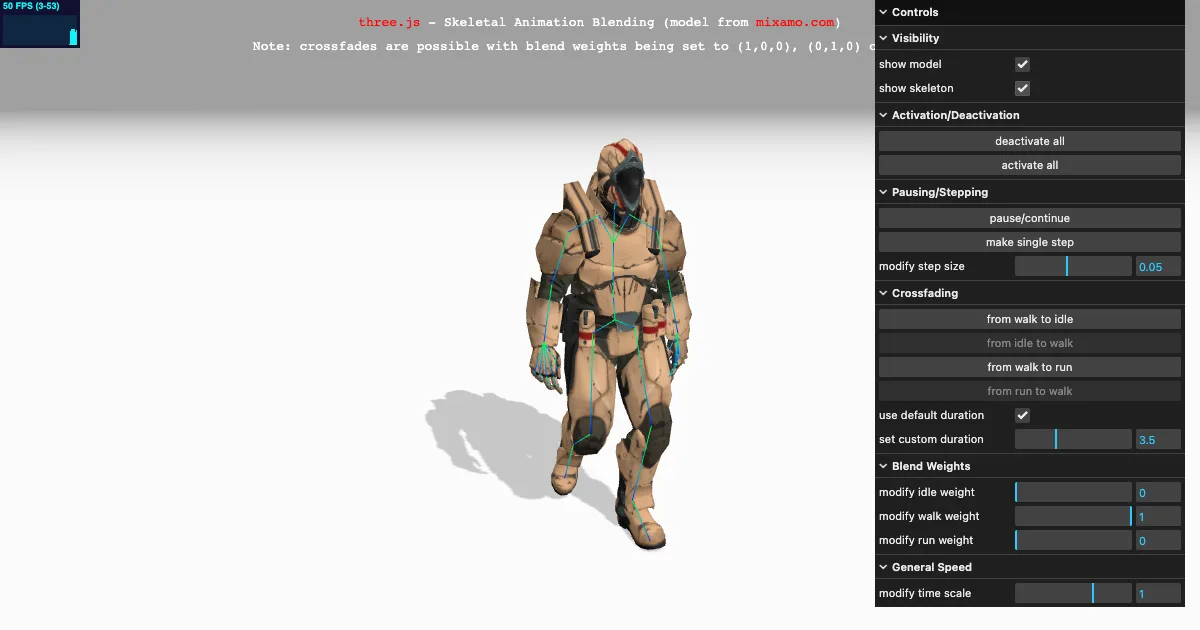
The three.js example Skeletal Animation Blending, which uses a Mixamo model, shows the same idea with weight sliders. We checked the code against three.js r187.
Clips from a second file. You can also keep animations in a separate GLB (exported "Without Skin") and add its animations to the same mixer. That works as long as the bone names match the character's. For a different skeleton, three.js has retargetClip in three/addons/utils/SkeletonUtils.js, but retargeting in Blender (Auto-Rig Pro's Remap) or picking a matching skeleton template in Meshy or Tripo is usually less work.
4. Keep the file small
- Download Mixamo clips at 30 fps (the default) rather than 60 unless you need it.
- Compress with glTF-Transform:
gltf-transform optimize hero.glb hero.opt.glb --texture-compress webp. By defaultoptimizeresamples animations (dropping duplicate keyframes), simplifies meshes and compresses with meshopt, which also compresses keyframe animation. Check the character after simplification, because joints can deform badly if too many vertices go. Load meshopt files withloader.setMeshoptDecoder(MeshoptDecoder), as shown in our Blender MCP guide. - Keep the exporter's bone influences at 4 per vertex (or 8). Blender's glTF manual warns that other values can display incorrectly in many viewers.
- Load only the clips a level needs, and share one character file between all copies of an enemy (clone it with
SkeletonUtils.clone, notObject3D.clone, so each copy gets its own skeleton).
Unity and Godot
- Unity: import the FBX, open the Rig tab, set Animation Type to Humanoid and let Unity create the Avatar from the model. Unity's Rig tab docs say it "usually detects the skeleton and maps it to the Avatar correctly". Humanoid clips then retarget between characters. Non-humanoids use Generic with a root bone. For Unity-side automation, see our Unity MCP guide.
- Godot 4: import the GLB, open the advanced import dialog, select the Skeleton3D and set a BoneMap with SkeletonProfileHumanoid. Godot auto-maps common bone names, and the Rest Fixer options fix rest-pose differences between tools, per the retargeting docs. Matching bone names alone is not enough in Godot 4; the rests must match too. See also our Godot MCP guide.
How an AI agent can help
An agent connected to Blender through Blender MCP runs Python inside your open Blender file, so it can do the repetitive parts: import the AI-generated GLB, apply scale, center the origin, decimate, add a Rigify metarig with bpy.ops.object.armature_human_metarig_add() (or armature_basic_human_metarig_add()), generate the rig with bpy.ops.pose.rigify_generate(), parent the mesh with automatic weights, and run the glTF export above. The operator names are from Rigify's source in the Blender repository.
The step an agent does worst is fitting the metarig's bones to the body, because it has to judge joint positions from viewport images. Check the bones yourself before generating, or let Mixamo, Meshy or Tripo place them and use the agent for the cleanup, NLA organisation, export and compression. Agent skill packs for Blender rigging and export are listed in our game dev agent skills roundup.
No time to rig? Start from rigged models
For background characters, a model that is already rigged and animated can be faster than rigging your own. Quaternius's Universal Animation Library (120+ humanoid animations) and KayKit's Character Animations (161 humanoid animations) are both CC0 and can be retargeted onto your own humanoid characters. Unlike Mixamo's files, CC0 files may be shared and redistributed. Our list of free low poly 3D models covers the libraries with free rigged and animated characters and their exact licences.
FAQ
Is Mixamo free for commercial games?
Yes. Adobe's FAQ says Mixamo characters and animations are royalty free for commercial projects, including video games, and Mixamo is free with an Adobe ID. The main limit is that you can't redistribute the raw character or animation files, for example in an asset pack. Baking them into your game is fine, and no credit is required.
Can Mixamo rig non-humanoid characters?
No. Mixamo's auto-rigger and animation library are for bipedal humanoids. For four-legged animals use Meshy's Quadruped option or Tripo's quadruped rig type. For insects, birds, snakes or fish use Tripo's API. In Blender, Rigify has quadruped, cat, wolf, horse and shark metarigs, and Auto-Rig Pro handles quadrupeds and extra limbs.
Rigify or Auto-Rig Pro?
Rigify if you want free and are happy to place bones and handle export yourself. Auto-Rig Pro ($50) if you rig many characters for games: it places humanoid bones for you, retargets Mixamo or mocap clips onto your rig with Remap, and exports clean FBX or glTF skeletons for Unity, Unreal and Godot.
How do I rig a Meshy model?
In Meshy, click Animate, select the model, click Rig, choose Humanoid, Quadruped Dog or Smart Rig, adjust the markers and confirm. Rigging costs no credits in the web app. Generate the character in A-pose or T-pose and remesh it first if it is over 300,000 faces. Download as GLB for three.js or FBX for Unity, with the Mixamo skeleton template if you want to add Mixamo animations later. On the Free plan the model is CC BY 4.0, so credit Meshy in your game.
Can I use AI-rigged characters in a browser game?
Yes. Export a single GLB with the rig and animations, load it with three.js's GLTFLoader and play the clips with AnimationMixer, as in the code above. Keep the triangle count and clip count low, and compress the file with glTF-Transform.
Sources
Checked 26 November 2026: Mixamo, Adobe Mixamo FAQ (via its indexed text), Mixamo licensing post in Adobe Community, Rigify manual and Basic Usage, Rigify source, Blender glTF 2.0 manual, Blender export_scene API, Auto-Rig Pro on Superhive, Meshy rigging guide, Meshy animation guide, Meshy pricing, Meshy Rigging API, Meshy Animation API, Tripo Auto Rig, Tripo Rig Check, Tripo Animation Retarget, Tripo pricing, AccuRIG, AccuRIG FAQ, AccuRIG release notes, Tencent Cloud SubmitAutoRiggingJob, Cascadeur plans, Cascadeur Quick Rigging Tool, UniRig, three.js AnimationMixer, three.js SkeletonUtils source, glTF-Transform CLI, Unity Rig tab, Godot retargeting 3D skeletons, Quaternius Universal Animation Library, KayKit Character Animations.